
VS Code
VS Code does not natively support adding custom models. To use FloTorch, install one of the OpenAI‑compatible extensions below. Each extension allows you to configure the Base URL, API Key, and Model.
Prerequisites
Section titled “Prerequisites”Before configuring VS Code, complete these steps in the FloTorch Console:
-
Register or log in to FloTorch
- Go to the FloTorch Console and create an account or sign in.
-
Create a custom model
- In the Console, go to Gateway → Model Registry → Models and create a model with your preferred configuration.
- Note the model name (e.g.
flotorch/<model-name>).
-
Create an API key
- Go to Workspace → Settings → API Keys and create an API key.
- Copy and store the key securely; you will need it when configuring the extension.
1. Kilo
Section titled “1. Kilo”Extension: Kilo
Setup Steps
Section titled “Setup Steps”- Open Extensions in VS Code.
- Search for Kilo in the VS Code Extensions Marketplace and install it, or install directly from the marketplace.
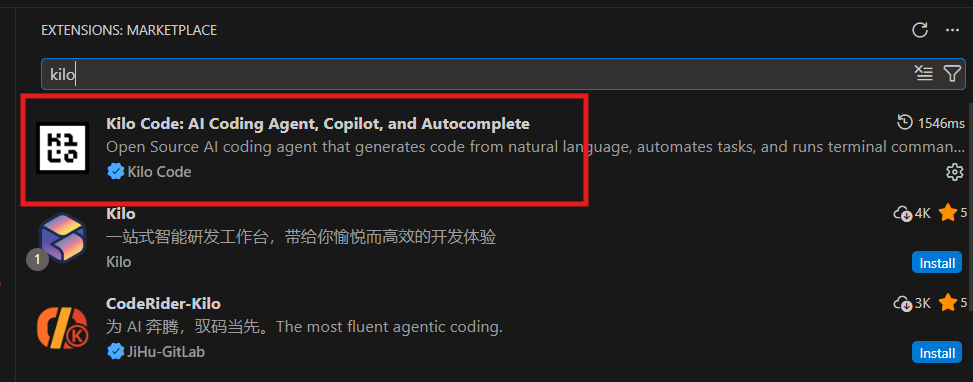
- Open Kilo (from the sidebar or Command Palette).
- Navigate to Settings → Providers.
- Under API Provider, select OpenAI Compatible.
- Configure:
- Base URL / Endpoint:
https://gateway.flotorch.cloud/openai/v1 - API Key: Your FloTorch API key (Create API Key)
- Model: Your FloTorch custom model name (Create Model)
- Base URL / Endpoint:
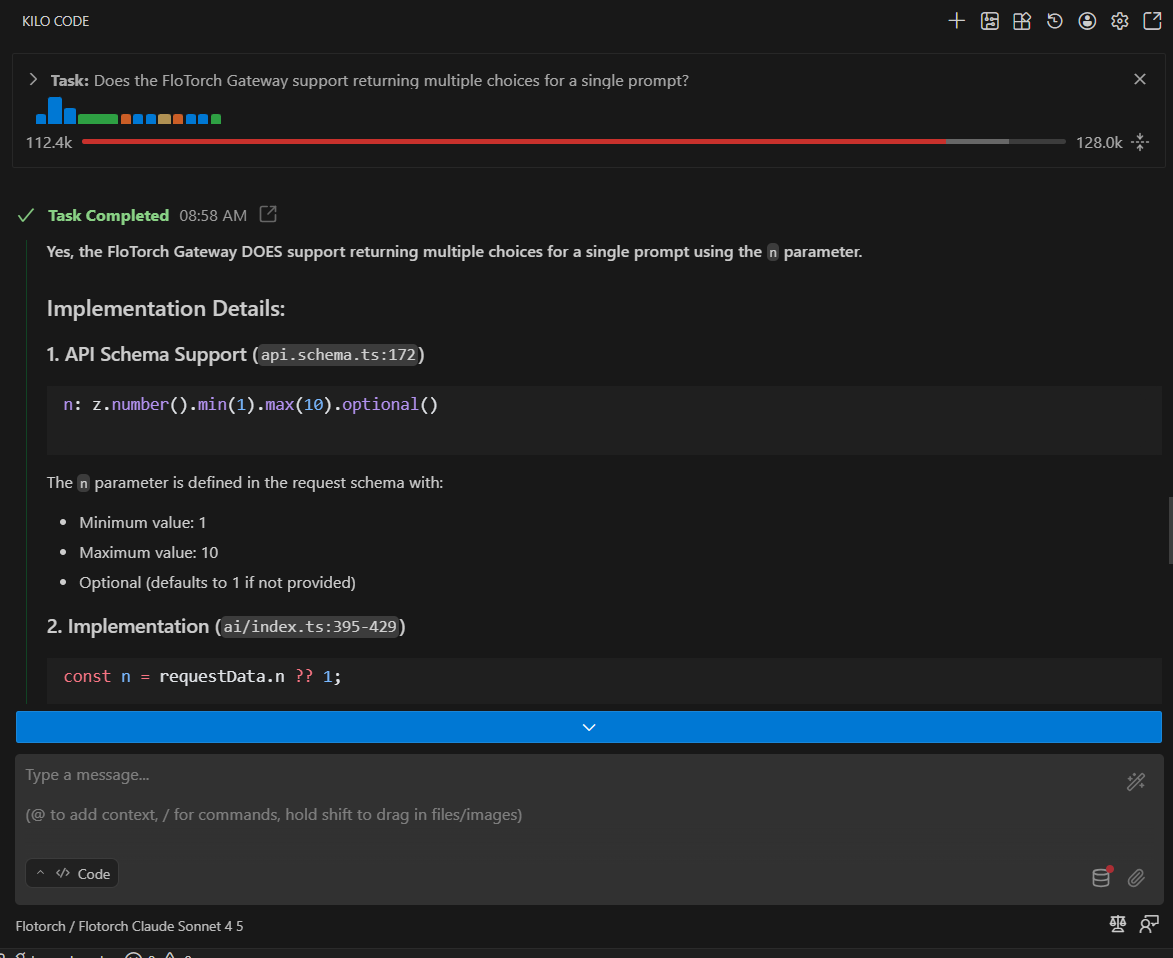
- Save and start using the model in Kilo.
2. Continue
Section titled “2. Continue”Extension: Continue
Setup Steps
Section titled “Setup Steps”- Install Continue from the VS Code Extensions Marketplace, or install directly from the marketplace.
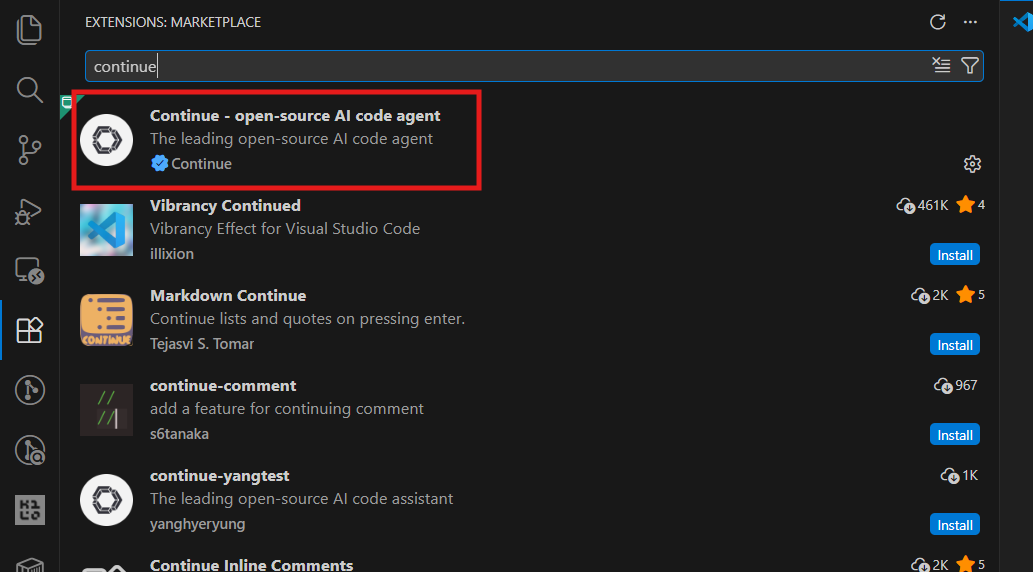
- Open Continue (from the sidebar or Command Palette).
- Navigate to Settings → Configs.
- Open Local Config (this opens
configs.yaml). - Add the FloTorch model configuration:
name: Local Configversion: 1.0.0schema: v1models: - name: FloTorch Gateway provider: openai model: YOUR_FLOTORCH_MODEL_NAME apiBase: https://gateway.flotorch.cloud/openai/v1 apiKey: YOUR_FLOTORCH_API_KEY roles: - chat - edit - apply- Replace
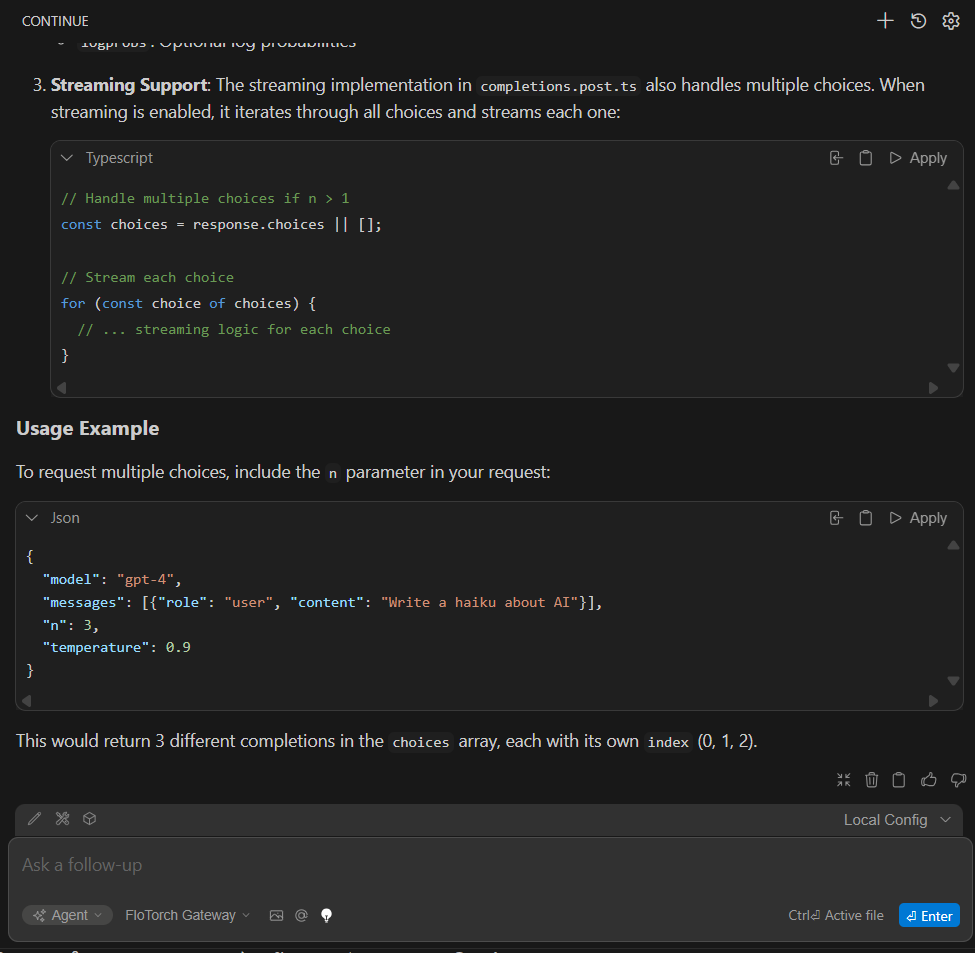
YOUR_FLOTORCH_MODEL_NAME(Create Model) andYOUR_FLOTORCH_API_KEY(Create API Key) with your actual values, save, and select this model in Continue.
3. Roo Code
Section titled “3. Roo Code”Extension: Roo Code
Setup Steps
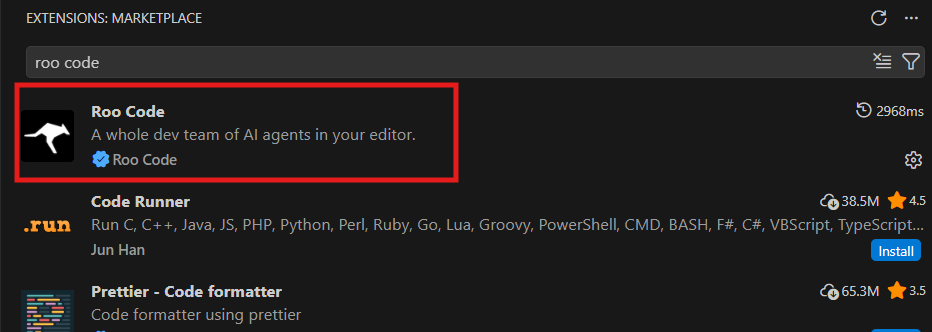
Section titled “Setup Steps”- Open Extensions in VS Code and install Roo Code, or install directly from the marketplace.
- Open Roo Code (sidebar or panel).
- Create a Roo Code account and redirect to VS Code.
- Navigate to Settings → Providers.
- Under API Provider, select OpenAI Compatible.
- Configure:
- Base URL:
https://gateway.flotorch.cloud/openai/v1 - API Key: Your FloTorch API key (Create API Key)
- Model ID: Your FloTorch custom model name (Create Model)
- Base URL:
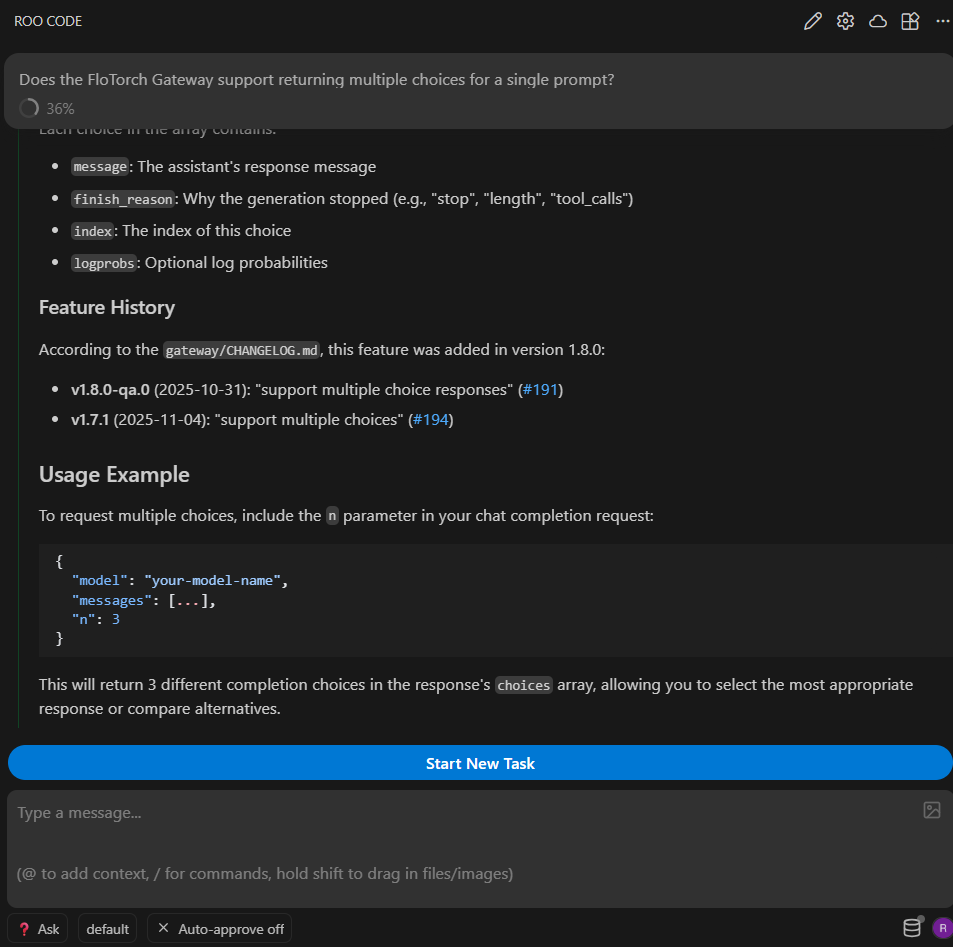
- Save the settings and select the model for chat and code actions.
Summary
Section titled “Summary”FloTorch integrates with OpenAI-compatible CLIs and editors. In VS Code, use any of the extensions above (Kilo, Continue.dev, Roo Code) with the same Flotorch gateway URL, API key, and model name. Other OpenAI-compatible tools—such as Cline, vscode-openai, and similar extensions that let you set a custom base URL, API key, and model also work.